Start with a name
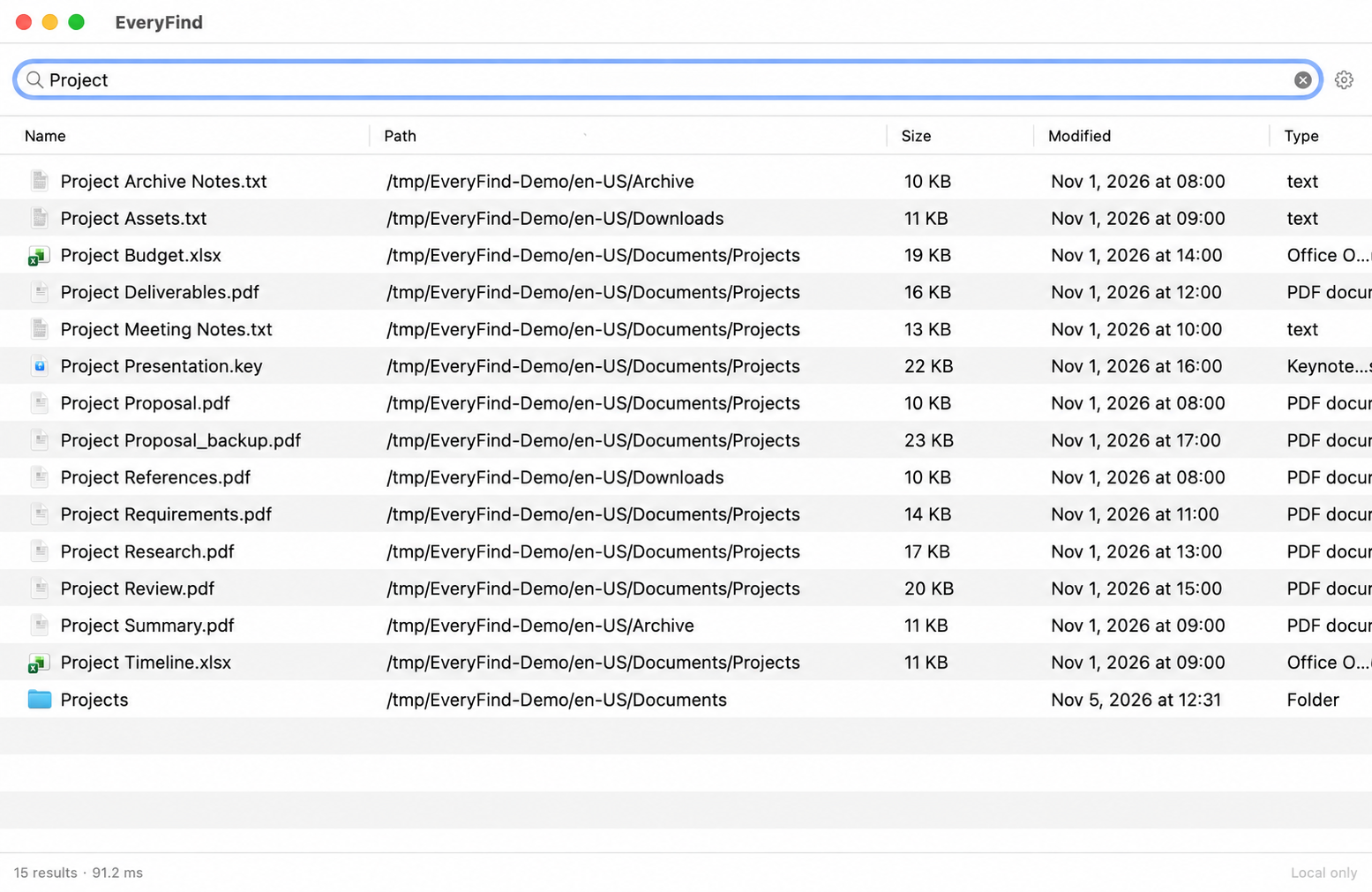
Search by file-name keywords. See names, paths, sizes, and modification dates at a glance, and sort by column.
Skip the folder-by-folder huntFILE SEARCH, MADE FOR MAC
Part of a file name is all you need.
Find files and folders in seconds.
Save your time for what matters.
macOS 14 or later · Coming to the Mac App Store
LESS SEARCHING. MORE DOING.
A lightweight search tool that puts your files within reach.
Search by file-name keywords. See names, paths, sizes, and modification dates at a glance, and sort by column.
Skip the folder-by-folder huntWhile EveryFind is running, press Control-F to show or hide the search window. Choose your own shortcut in Settings.
A shortcut that fits your habitsOpen a file, reveal it in Finder, or copy its full path or name. Your next step is just as easy as the search.
Keep your workflow movingA LITTLE MORE PRECISE.
Combine keywords, extensions, file types,
and exclusions to narrow your search.
ProjectA keyword from the file nameext:pdfShow only PDF files!backupExclude backup from names and paths| Name | Location | Type |
|---|
No matching sample files. Try “Project” or select a preset above.
This simplified web demo uses fictional files and never reads your device. The app searches a local index of folders you authorize.
YOUR FILES. YOUR WAY.
Bring your everyday folders and external storage into the same search.
Documents, downloads, work files.
Select and authorize the folders you need.
Add an external drive as a search location.
Connect it when you want to open a file.
Include files on mounted network storage.
Updates may lag; rebuild the index if needed.
Exclude folders you do not need, and include selected subfolders within excluded locations.
LOCAL BY DESIGN.
EveryFind builds its own local index, independently of Spotlight. It does not upload file names or index data. Search indexed local folders even when you are offline.
EveryFind is coming to the Mac App Store. We will add a download link here once App Store review is complete. Stay tuned.
EveryFind requires macOS 14 or later. On first launch, select and authorize your search folders, then let the initial index finish.
EveryFind searches file names, not document contents. Combine keywords, extensions, file types, and exclusions to find files and folders.
Check that the folder is added, authorized, and indexed, and that it is not excluded. Make sure external or network storage is connected. You can rebuild the index in Settings if needed.
Yes. Change the default Control-F shortcut in General settings. The global shortcut works only while EveryFind is running. The default may override the move-cursor-forward action in other apps.

Your next effortless search is on its way.
Coming soon to the Mac App Store